
Guide • MTG Commander Life Tracker
MTG Game Tracker Guide: How to Use the Dashboard
Learn how to use GearUpTCG’s Commander life tracker dashboard. Set up players, choose color identities, and manage life totals and counters with a clean, event-ready interface.
PREVIEW
▷Fast • Offline-friendly • Mobile-first • No sign-in required
What this Dashboard is for
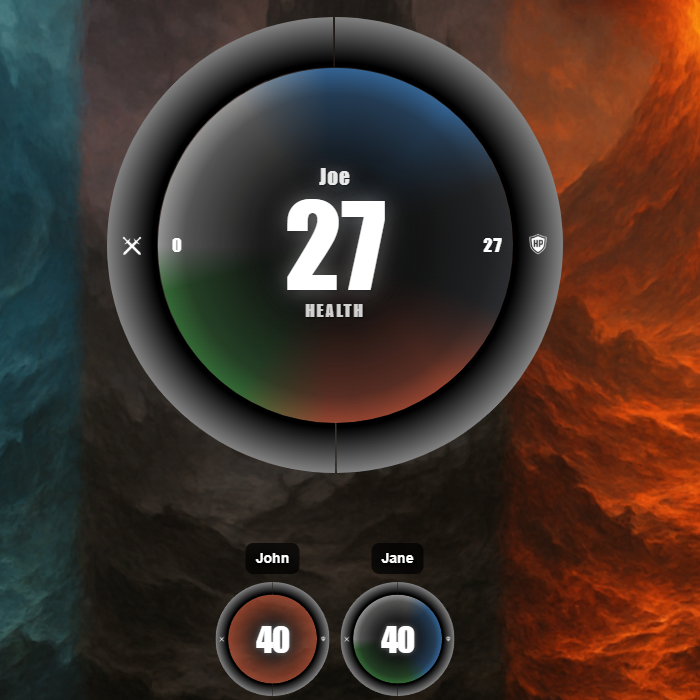
The MTG Game Tracker Dashboard is built for Commander pods that want a clear, shared view of the game. Each player gets a circular control panel for life totals and optional counters like poison, energy, experience, speed, and commander casts. You can quickly swap the active player, adjust values with taps, and keep the game moving with built-in D20 and coin tools. You can use this tool be either using your PC or your mobile devices.
Quick Start in Under a Minute
- Open the dashboard and it will set you up with your main player user interface.
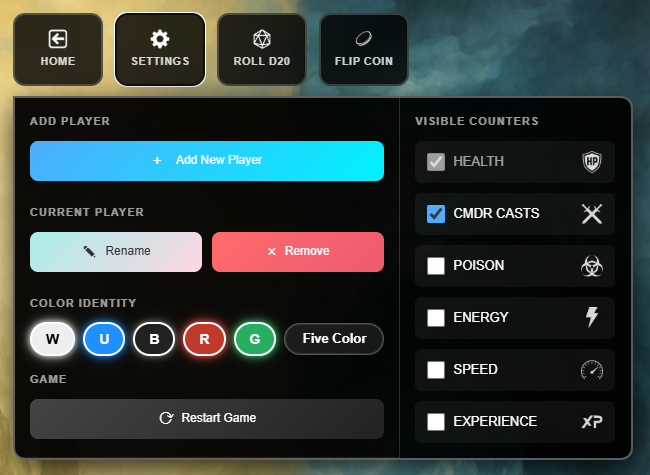
- Tap Add Player to create more player panels.
- Tap Rename Player to change a player’s name from the default ‘Player 1’ or ‘Player 2’ to something like ‘John’ or ‘The Professor’. Confirm to save.
- Use the Color Identity dropdown to set your player panel’s colors, choosing from one-color to all five to match your commander.
- Under Visible Counters, keep Health on and optionally enable Poison, Energy, Experience, Speed, or Commander Casts.
- Repeat for each player in your pod. Use the bottom row of mini panels to switch who is currently active on the big center ring.
Setting up your Game
Add Players
Open the Settings dropdown menu and choose Add New Player. A new ring is created with default life total and counters. The newest player becomes active automatically.
Rename and Remove
To help differentiate each player, you can use Rename Player to label each panel with a name instead of your default Player 1, Player 2, etc. If someone leaves the pod, select them as the active player and tap Remove Player to clean up the layout.
Color Identity
The color identity picker updates the ring’s styling and helps quickly see who is on which colors at a glance. Change it at any time without affecting current life totals or counters. So, either pick your favorite color or choose one that reflects your or the other player’s deck color identity.
Visible Counters
Customize the ring around each player panel by adding different types of counters that are relevant to that player that you want to track in the current game. Choose between health points, number of commander casts, poison, energy, speed and experience counters.
Using the Circular Life and Counter Ring
- The big number always reflects the currently selected counter for the active player.
- Tap the upper half of the ring to increase the current counter (usually life).
- Tap the lower half to decrease it.
- Tap on a ring segment to select the current counter to be displayed at the center.
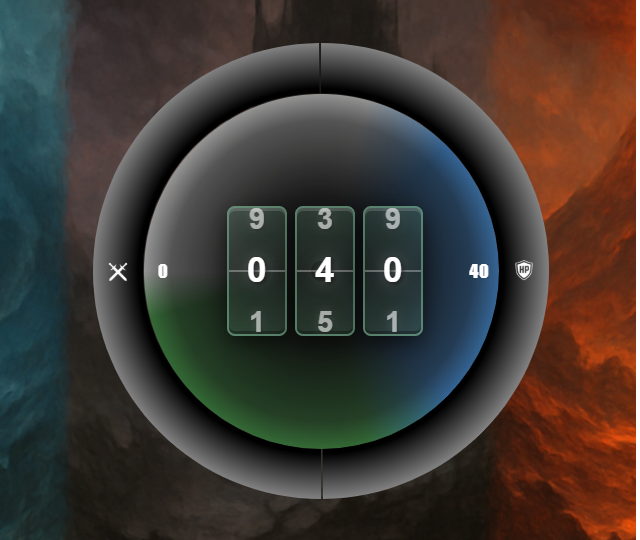
- Double tap the center label to display a wheel spindown-style counter where you can change a digit at a time by swiping either up or down.
Quick Dice and Coin Tools
Need a D20 to trigger a card’s effect or decide who starts the game? You can use the option to use Roll D20 to simulate a dice roll.
We also have included a Flip Coin function as well, to help make those hard yes/no decisions or play out a card’s .
Tips, Saving, and Best Practices
- The dashboard stores state locally in your browser, so reloading the page keeps current life totals and counters on the same device.
- For live events or game nights, keep the app open on a shared tablet in landscape mode for maximum visibility.
- If anything looks too small, zoom your browser to 110–125 % instead of changing system resolution.
- To start a fresh game, refresh the page and re-add players as needed.
Ready to put it into play? Launch the tracker and try it in your next Commander pod.